Support
Last updated 8 November 2026
How to get the most out of Capy Sync, and how to send your data to your own webhook. Questions this page doesn't answer? Email support@cloudyapps.app.
All screenshots and example data on this page are simulated.
Getting started
The first time you open Capy Sync, it asks whether you also want to send your data to a webhook. Choose No, just show my stats if you only want the app, widgets and watch. You can turn the webhook on later in Settings.
Capy Sync then asks for permission to read from Apple Health. It only reads, it never writes, and you can change what it can see at any time in the iPhone's Settings app under Health → Data Access & Devices → Capy Sync.
Everything is free for 7 days. After that, steps stay free, and a single purchase unlocks everything else: the other stats, webhook sync and export, and the same stats on the widgets, Live Activity, watch app and complications. There is no subscription.
The main screen
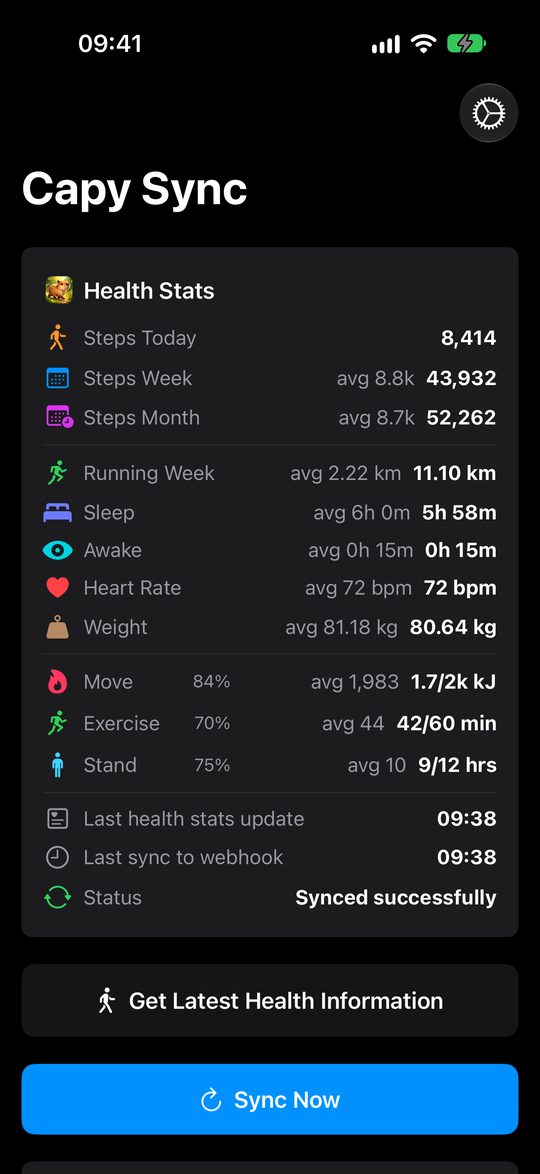
Health Stats at the top sums up today: steps today, this week and this month with daily averages, running distance for the week, last night's sleep and awake time, today's heart rate, your latest weight, and your Move, Exercise and Stand rings. It also shows when the stats were last read from Apple Health and, with the webhook on, when they were last sent.
Get Latest Health Information re-reads Apple Health straight away. With the webhook on, Sync Now sends the latest data too.
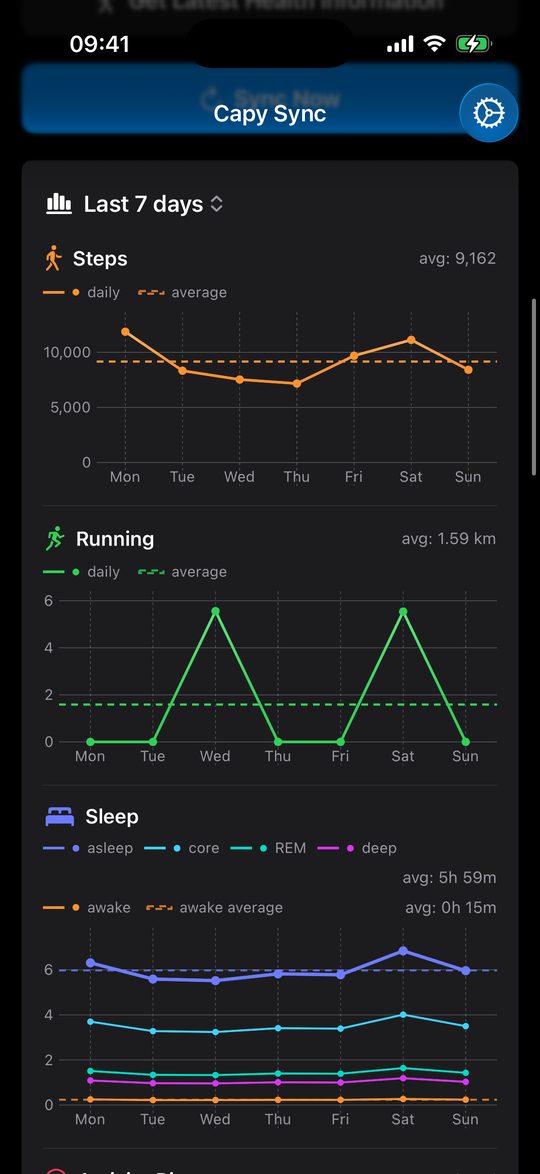
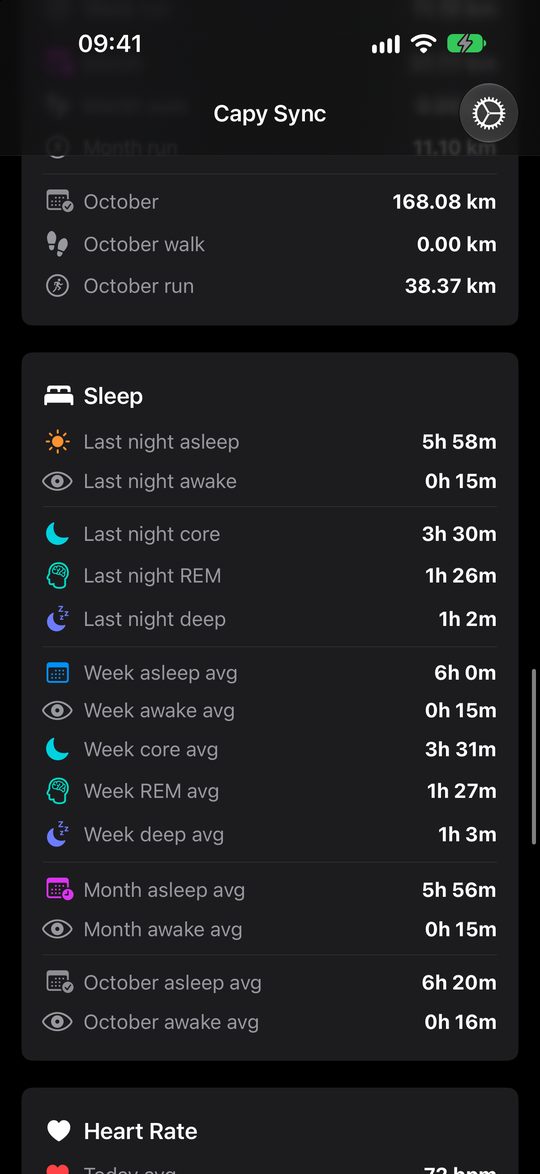
Below the summary are graphs for the last 7 days, with each one's average shown as a dashed line, and cards with more detail for steps, distance, sleep (including Deep, Core and REM stages), heart rate, activity rings and weight.
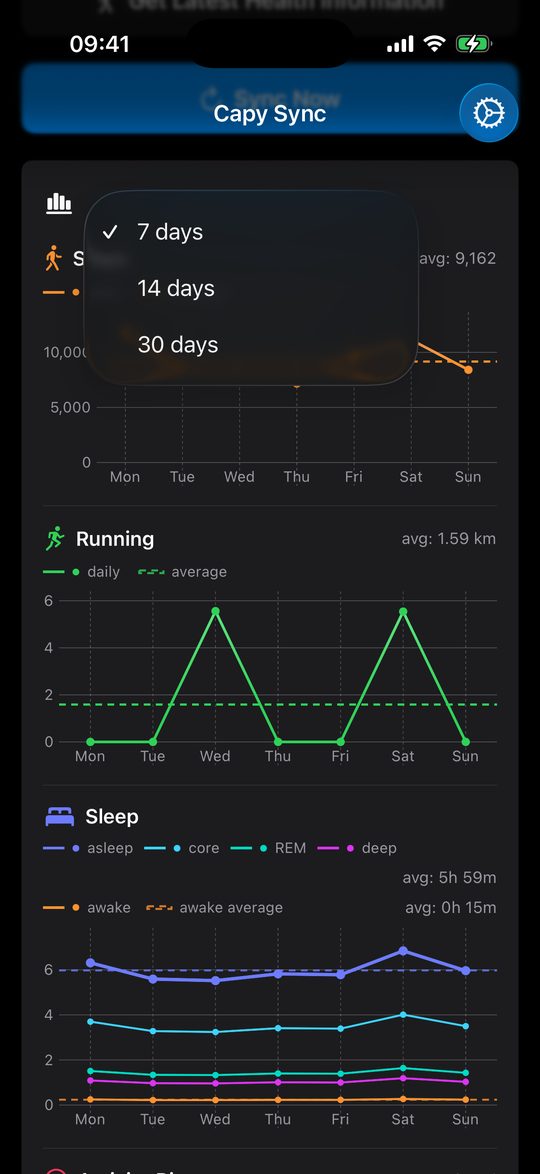
To see a longer stretch, tap the Last 7 days heading above the graphs and choose 7 days, 14 days or 30 days. Every graph and its average follow the choice, and Capy Sync remembers it.
Activity rings come from an Apple Watch. Without one, the rings rows are left out rather than shown as zero.
Widgets
Touch and hold the Home Screen, tap Edit → Add Widget, and search for Capy Sync. The gallery offers two Home Screen widgets. Both have Health Stats as the heading inside the widget, but they have different names and descriptions in the gallery:
| Gallery name | Gallery description | Sizes |
|---|---|---|
| Health Stats Activity Values | Daily steps, running and sleep, with activity rings as current and goal. | Small |
| Health Stats | Track your daily steps, running, sleep, and heart rate. | Small, medium, and Lock Screen (circular, rectangular and inline) |
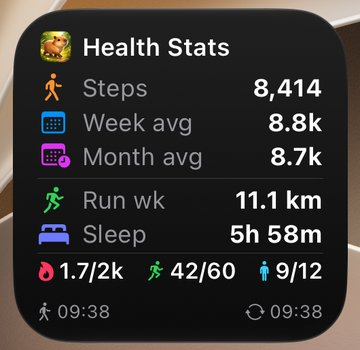
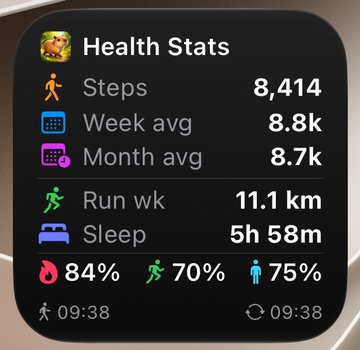
The two small widgets show the same rows: Steps (today), Week avg, Month avg, Run wk (running distance this week) and Sleep (last night). The bottom row is where they differ:
- Health Stats Activity Values shows each ring as current and goal, such as
1.7/2kkJ Move,42/60Exercise minutes and9/12Stand hours. - Health Stats shows each ring as a percentage of its goal, such as
84%,70%and75%.
Without an Apple Watch there are no rings, so both small widgets show Heart Rate (today's average) in that row instead. The same happens if you hide activity rings in Settings.
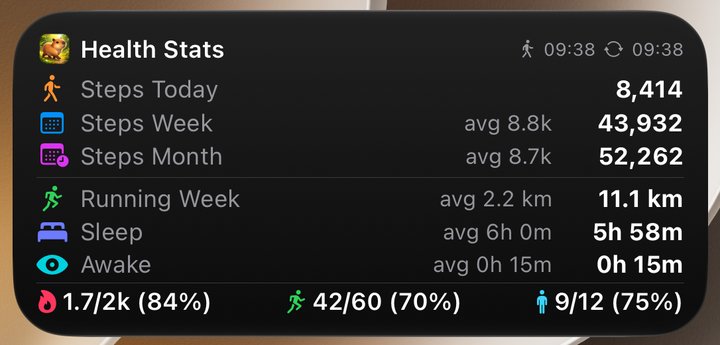
The medium widget spells out more: Steps Today, Steps Week and Steps Month with their daily averages, Running Week, Sleep and Awake with their averages, and the rings as current/goal with the percentage, such as 42/60 (70%). It has no heart rate row.
Every widget shows when steps were last read (the walking figure) and, when the webhook is on, when they were last sent (the circular arrows). Stats you hide in Settings are left off the widgets too, and a value with no data shows as — rather than zero.
Live Activity
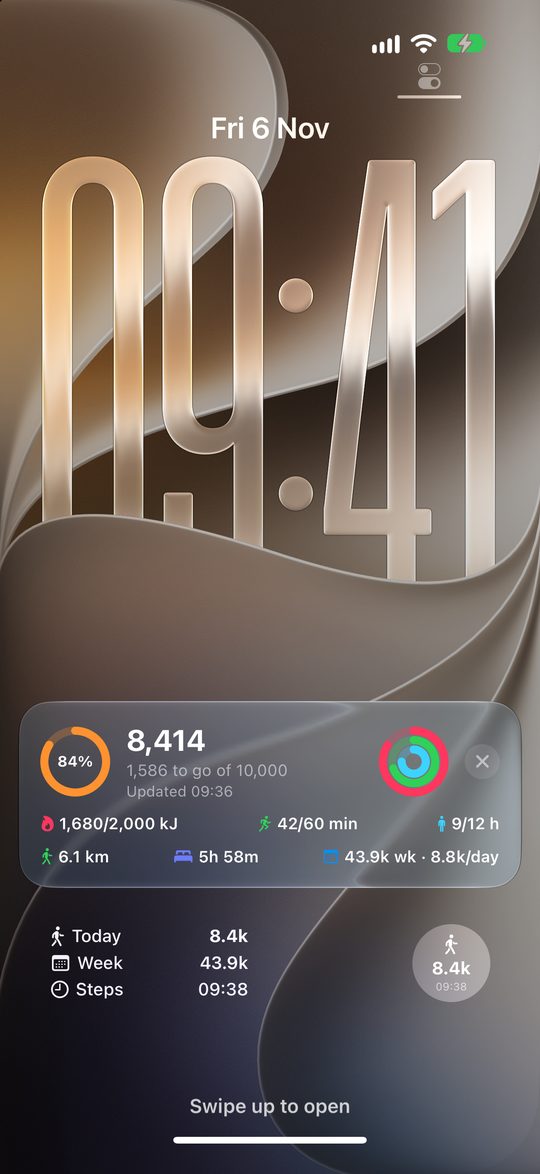
The Live Activity keeps today's steps against your daily goal on the Lock Screen and in the Dynamic Island, along with your activity rings, distance today, last night's sleep and this week's steps.
Set your goal in Settings → Live Activity and tap Start Live Activity. You can also add the Step Live Activity control to Control Center or the Lock Screen, or, with watchOS 26, to your Apple Watch's Control Center, where tapping it starts the Live Activity on your iPhone. The start and stop actions are in Shortcuts too.
Apple Watch
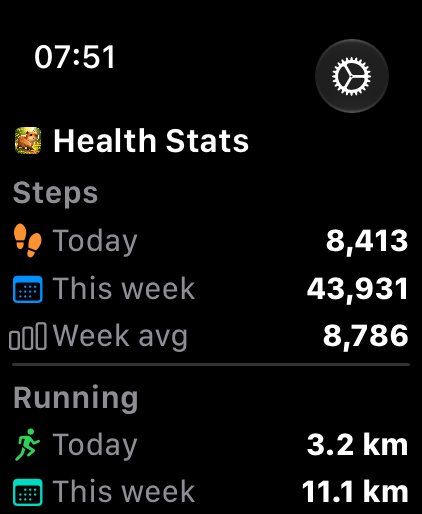
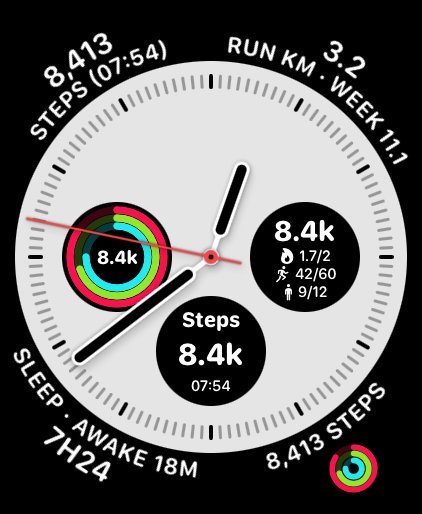
The watch app and complications read straight from your Apple Watch, so they work without your iPhone nearby. Add complications by touching and holding your watch face and tapping Edit.
Settings and export
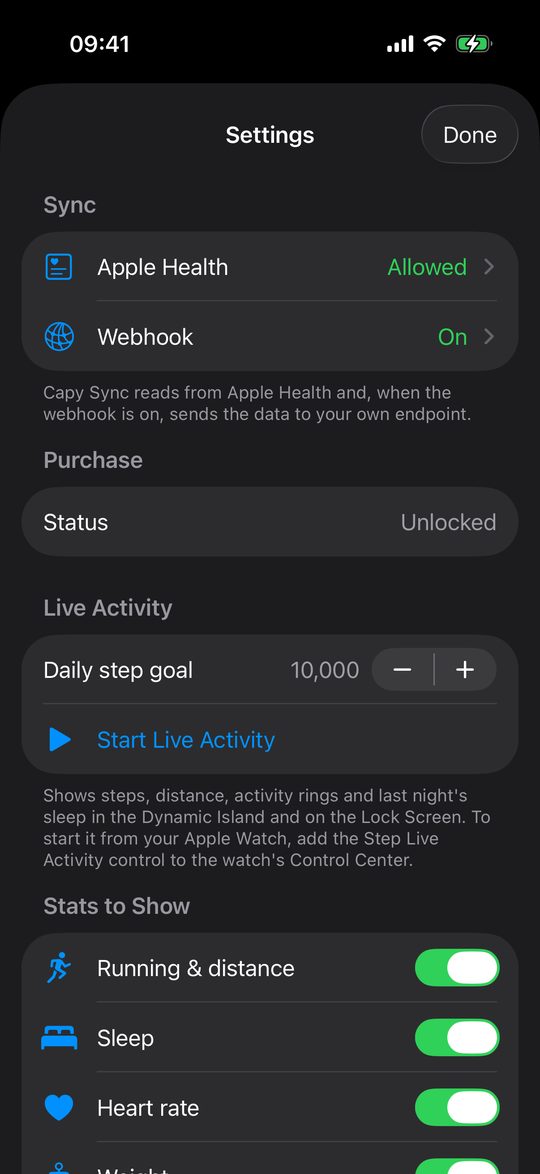
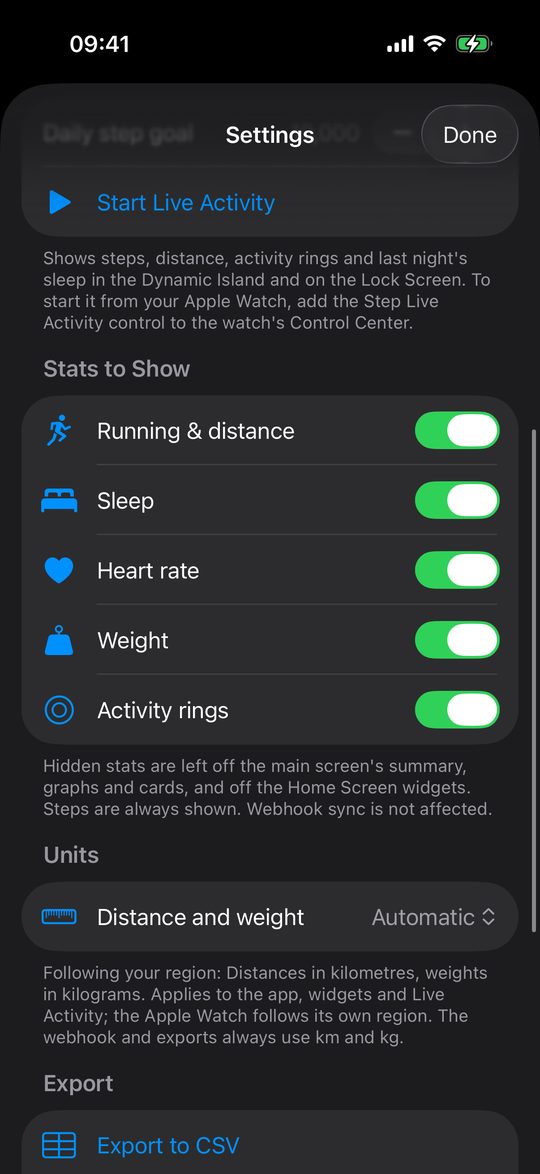
Tap the gear on the main screen to open Settings.
- Purchase shows your trial or unlock, and has Restore Purchases.
- Live Activity sets your daily step goal and starts or stops the Live Activity.
- Stats to Show hides running and distance, sleep, heart rate, weight or activity rings from the main screen and the widgets. Steps are always shown, and hidden stats are still sent to your webhook.
- Units picks how distance and weight are shown: Automatic (from your iPhone's region), Metric (km, kg) or Imperial (mi, lb). Automatic uses miles and pounds in the US, miles and kilograms in the UK, and kilometres and kilograms elsewhere. It applies to the app, widgets and Live Activity. The Apple Watch app and complications follow the watch's own region. The webhook and exports always use km and kg.
- Export saves your data as CSV (one row per day) or JSON (exactly what the webhook receives), to share or keep.
Webhook sync
Capy Sync can send your health data as JSON to a URL you choose, such as your own Home Assistant or a Cloudflare Worker. It goes straight from your iPhone to that URL. Nothing passes through us.
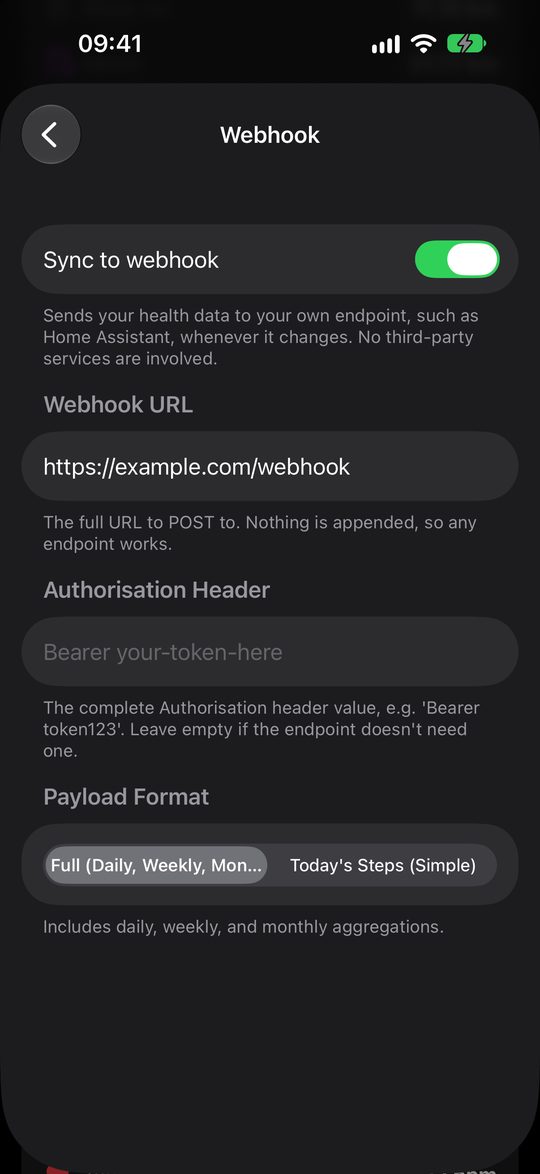
Turn it on in Settings → Webhook:
- Webhook URL is the full URL to send to. Nothing is added to it.
- Authorisation Header is sent as the request's
Authorizationheader, for exampleBearer my-secret-token. Leave it empty if your endpoint doesn't need one, and it won't be sent. - Payload Format is Full (Daily, Weekly, Monthly) or Today's Steps (Simple). They're described below.
Each sync is an HTTP POST with Content-Type: application/json. Any 2xx response counts as success, and the request gives up after 15 seconds.
Capy Sync sends whenever Apple Health tells it there's new data (usually within about 15 minutes of steps being recorded), when you open the app, and when you tap Sync Now. iOS decides when apps run in the background, so if you don't open the app for a long time, syncs can be delayed.
The test webhook
To try webhook sync before you have your own endpoint, use:
https://capysync.cloudyapps.app/webhookIt accepts any request and always answers 200 with {"ok":true}. It doesn't read, store or log what you send, so it's safe to point the app at, but there is nothing to see on the other end. Leave the Authorisation Header empty, tap Sync Now, and the main screen should say Synced successfully.
You can try it from a computer too:
curl -X POST https://capysync.cloudyapps.app/webhook \
  -H "Content-Type: application/json" \
  -d '{"entity_id":"input_number.capy_steps","value":8414}'
What the webhook receives
There are two formats. Both are JSON objects. The examples below use simulated data.
Today's Steps (Simple)
One number, for endpoints that only want today's steps:
{
  "entity_id" : "input_number.capy_steps",
  "value" : 8414
}| Field | Type | Meaning |
|---|---|---|
entity_id | string | Whatever you enter in the Entity ID field under Payload Format. It's named for Home Assistant, but any text works. |
value | integer | Today's step count, or 0 when Apple Health has nothing for today yet. |
Full (Daily, Weekly, Monthly)
Everything Capy Sync reads, covering the last 32 days, grouped into days, weeks (starting on your region's first day of the week) and calendar months. This example is shortened to two days per daily list. A real payload has one entry per day with data.
{
  "steps" : {
    "today" : { "date" : "2026-11-06", "steps" : 8414 },
    "daily" : [
      { "date" : "2026-11-06", "steps" : 8414 },
      { "date" : "2026-11-05", "steps" : 9871 }
    ],
    "weekly" : [
      { "weekStart" : "2026-11-02", "weekEnd" : "2026-11-08", "total" : 43932, "averagePerDay" : 8786 }
    ],
    "monthly" : [
      { "month" : "11", "year" : 2026, "total" : 52262, "averagePerDay" : 8710 },
      { "month" : "10", "year" : 2026, "total" : 268560, "averagePerDay" : 8663 }
    ]
  },
  "distances" : {
    "today" : { "date" : "2026-11-06", "walkingKm" : 3.92, "runningKm" : 2.18, "totalKm" : 6.1 },
    "daily" : [
      { "date" : "2026-11-06", "walkingKm" : 3.92, "runningKm" : 2.18, "totalKm" : 6.1 },
      { "date" : "2026-11-05", "walkingKm" : 7.15, "runningKm" : 0, "totalKm" : 7.15 }
    ],
    "weekly" : [
      { "weekStart" : "2026-11-02", "weekEnd" : "2026-11-08", "walkingKm" : 20.64, "runningKm" : 11.1,
        "totalKm" : 31.74, "averagePerDayKm" : 6.35 }
    ],
    "monthly" : [
      { "month" : "11", "year" : 2026, "walkingKm" : 25.02, "runningKm" : 13.28,
        "totalKm" : 38.3, "averagePerDayKm" : 6.38 }
    ]
  },
  "sleep" : {
    "today" : {
      "date" : "2026-11-06", "asleepHours" : 5.97, "awakeHours" : 0.25,
      "deepHours" : 1.04, "coreHours" : 3.5, "remHours" : 1.43, "unspecifiedHours" : 0,
      "samplesCount" : 21
    },
    "daily" : [ "… one entry per night, shaped like today …" ],
    "weekly" : [
      { "weekStart" : "2026-11-02", "weekEnd" : "2026-11-08",
        "totalAsleepHours" : 30.02, "totalAwakeHours" : 1.25,
        "averageAsleepHours" : 6.0, "averageAwakeHours" : 0.25,
        "totalDeepHours" : 5.15, "totalCoreHours" : 17.5, "totalRemHours" : 7.37, "totalUnspecifiedHours" : 0,
        "averageDeepHours" : 1.03, "averageCoreHours" : 3.5, "averageRemHours" : 1.47, "averageUnspecifiedHours" : 0,
        "daysWithData" : 5 }
    ],
    "monthly" : [ "… the same fields as weekly, with month and year in place of weekStart and weekEnd …" ]
  },
  "heartRate" : {
    "today" : { "date" : "2026-11-06", "averageBpm" : 72.4, "minBpm" : 54, "maxBpm" : 131, "samplesCount" : 96 },
    "daily" : [ "… one entry per day, shaped like today …" ],
    "weekly" : [
      { "weekStart" : "2026-11-02", "weekEnd" : "2026-11-08", "averageBpm" : 71.8, "minBpm" : 51, "maxBpm" : 148, "daysWithData" : 5 }
    ],
    "monthly" : [
      { "month" : "11", "year" : 2026, "averageBpm" : 71.9, "minBpm" : 51, "maxBpm" : 148, "daysWithData" : 6 }
    ]
  },
  "activityRings" : {
    "today" : {
      "date" : "2026-11-06",
      "moveKilojoules" : 1680, "moveGoalKilojoules" : 2000,
      "exerciseMinutes" : 42, "exerciseGoalMinutes" : 60,
      "standHours" : 9, "standGoalHours" : 12
    },
    "daily" : [ "… one entry per day, shaped like today …" ]
  },
  "weight" : {
    "latest" : { "date" : "2026-11-06", "kg" : 80.64, "timestamp" : "2026-11-06T07:12:00Z" },
    "daily" : [
      { "date" : "2026-11-06", "kg" : 80.64, "samplesCount" : 1 },
      { "date" : "2026-11-03", "kg" : 81.2, "samplesCount" : 1 }
    ],
    "weekly" : [
      { "weekStart" : "2026-11-02", "weekEnd" : "2026-11-08", "averageKg" : 80.92, "minKg" : 80.64, "maxKg" : 81.2, "daysWithData" : 2 }
    ],
    "monthly" : [
      { "month" : "11", "year" : 2026, "averageKg" : 81.18, "minKg" : 80.64, "maxKg" : 81.7, "daysWithData" : 3 }
    ]
  },
  "timestamp" : "2026-11-06T09:38:00Z"
}
The lines in quotes starting with … stand in for entries left out to keep the example short. They are never sent.
Things worth knowing
- Newest first. Every
daily,weeklyandmonthlylist starts with the most recent entry, soweekly[0]is this week andmonthly[0]is this month. - Prefer
todaytodaily[0].daily[0]is the newest day with data, which is yesterday if nothing has been recorded today yet.todayis left out entirely (not sent asnull) when there's nothing for today. - Dates are
YYYY-MM-DDin your iPhone's time zone.monthis a two-digit string such as"11".timestampvalues are ISO 8601 in UTC. - Units: distances in kilometres, sleep in hours, heart rate in beats per minute, Move in kilojoules, Exercise in minutes, Stand in hours, weight in kilograms. These stay the same whatever you choose in Settings → Units, so your automations don't break if you switch to miles and pounds. To show miles in Home Assistant, divide by 1.609344; for pounds, divide by 0.45359237.
- Sleep is overnight sleep. Sleep that starts between midday and 6 pm counts as a nap and is left out. The stages (
deepHours,coreHours,remHours,unspecifiedHours) add up toasleepHours, give or take rounding.unspecifiedHoursis sleep recorded without stages, such as by an iPhone alone. activityRingsis left out when there are no rings, for example with no Apple Watch.weightis left out when Apple Health has no weight.latestis the most recent weigh-in, however old, anddailyonly lists days you weighed in.- Hiding a stat in Stats to Show doesn't remove it from the webhook.
Set up Home Assistant
Home Assistant receives Capy Sync through a webhook trigger in an automation. The automation then copies the values you want into number helpers, which you can show on dashboards, graph and use in other automations.
1. Create number helpers
In Home Assistant, go to Settings → Devices & services → Helpers → Create helper → Number, and make one for each value you want to keep. For example:
| Helper | Holds | Maximum |
|---|---|---|
input_number.capy_steps_today | Today's steps | 100000 |
input_number.capy_steps_week | This week's steps | 1000000 |
input_number.capy_sleep_last_night | Hours asleep last night | 24 |
input_number.capy_heart_rate | Today's average heart rate | 250 |
Set the Maximum high enough. The default of 100 quietly caps a step count at 100. Set Step to 0.01 for helpers that hold hours or kilometres.
2. Create the automation
Go to Settings → Automations & scenes → Create automation → Create new automation, open the ⋮ menu, choose Edit in YAML, and paste this. Replace the webhook_id with your own long random text: anyone who knows it can send to your webhook, so treat it like a password.
alias: Capy Sync
description: Store health data sent by Capy Sync
triggers:
  - trigger: webhook
    webhook_id: capy-sync-change-me-to-something-long-and-random
    allowed_methods:
      - POST
    local_only: false
actions:
  - variables:
      p: "{{ trigger.json }}"
  - action: input_number.set_value
    target:
      entity_id: input_number.capy_steps_today
    data:
      value: "{{ p.steps.today.steps | default(0) }}"
  - action: input_number.set_value
    target:
      entity_id: input_number.capy_steps_week
    data:
      value: "{{ p.steps.weekly[0].total | default(0) }}"
  - action: input_number.set_value
    target:
      entity_id: input_number.capy_sleep_last_night
    data:
      value: "{{ p.sleep.today.asleepHours | default(0) }}"
  - if:
      - condition: template
        value_template: "{{ p.heartRate.today is defined }}"
    then:
      - action: input_number.set_value
        target:
          entity_id: input_number.capy_heart_rate
        data:
          value: "{{ p.heartRate.today.averageBpm }}"
mode: queued
Save the automation. local_only: false lets your iPhone reach the webhook when it's away from home. Leave it as true if your iPhone only ever syncs on your home network.
Use | default(0) or an if check like the heart rate one for anything that can be missing, such as today, activityRings and weight.
3. Point Capy Sync at it
- Your webhook URL is your Home Assistant address followed by
/api/webhook/and your webhook ID, for examplehttps://ha.example.com/api/webhook/capy-sync-change-me-to-something-long-and-random. It must be reachable from your iPhone. If you use Home Assistant Cloud, the webhook trigger can give you a cloud URL to copy instead. - In Capy Sync, open Settings → Webhook, turn on Sync to webhook and paste the URL.
- Authorisation Header isn't needed. Home Assistant webhooks, including Home Assistant Cloud ones, are protected by the webhook ID in the URL and ignore this header if it's set. You only need one if something in front of Home Assistant, such as a reverse proxy or Cloudflare Access, checks it.
- Choose Full (Daily, Weekly, Monthly).
- Tap Sync Now on the main screen, then check your helpers in Home Assistant.
Just today's steps
If you only want today's steps, choose Today's Steps (Simple) and set Entity ID to your helper, such as input_number.capy_steps_today. Home Assistant entity IDs are lowercase. The automation then needs only one action, which uses the entity ID the app sends:
alias: Capy Sync steps
triggers:
  - trigger: webhook
    webhook_id: capy-sync-change-me-to-something-long-and-random
    allowed_methods:
      - POST
    local_only: false
actions:
  - action: input_number.set_value
    target:
      entity_id: "{{ trigger.json.entity_id }}"
    data:
      value: "{{ trigger.json.value }}"
mode: queued
Send to a webhook, not to Home Assistant's /api/states/ address. That API expects a different body and won't accept what Capy Sync sends.
Set up a Cloudflare Worker
A Cloudflare Worker can receive Capy Sync and keep the latest data in Workers KV, all on Cloudflare's free plan. You'll need a Cloudflare account and Node.js on your computer.
1. Create the Worker
npm create cloudflare@latest capy-webhookChoose the Hello World example, Worker only, and JavaScript. Then, in the new capy-webhook folder, create a KV namespace:
cd capy-webhook
npx wrangler kv namespace create CAPY
Wrangler prints a kv_namespaces entry. Add it to wrangler.jsonc so it looks like this, with your own ID:
"kv_namespaces": [
  { "binding": "CAPY", "id": "<the id wrangler printed>" }
]
2. Add the code
Replace src/index.js with:
export default {
  async fetch(request, env) {
    // Only accept requests that carry the secret token.
    if (request.headers.get("Authorization") !== `Bearer ${env.WEBHOOK_TOKEN}`) {
      return new Response("Unauthorized", { status: 401 });
    }

    // GET returns the last payload received, for checking it worked.
    if (request.method === "GET") {
      const latest = await env.CAPY.get("latest");
      return new Response(latest ?? "{}", {
        headers: { "Content-Type": "application/json" },
      });
    }

    if (request.method !== "POST") {
      return new Response("Method not allowed", { status: 405 });
    }

    let body;
    try {
      body = await request.json();
    } catch {
      return new Response("Expected JSON", { status: 400 });
    }

    // Both formats: the simple one has "value", the full one has "steps".
    const stepsToday = body.value ?? body.steps?.today?.steps ?? 0;

    await env.CAPY.put("latest", JSON.stringify(body));
    await env.CAPY.put("steps-today", String(stepsToday));

    return Response.json({ ok: true });
  },
};
3. Set a token and deploy
Pick a long random token, store it as a secret, and deploy:
npx wrangler secret put WEBHOOK_TOKEN
npx wrangler deploy
Wrangler prints your Worker's address, such as https://capy-webhook.your-subdomain.workers.dev.
4. Point Capy Sync at it
- In Settings → Webhook, set Webhook URL to your Worker's address.
- Set Authorisation Header to
Bearer, a space, and your token, for exampleBearer 3f9c…. - Choose either payload format, and tap Sync Now.
To check it arrived:
curl https://capy-webhook.your-subdomain.workers.dev \
  -H "Authorization: Bearer <your token>"
From there you can build on it, for example by saving each day to D1 or R2, or serving a small dashboard.
Troubleshooting
- The webhook says HTTP Error and a number
- Your endpoint answered but not with success.
401or403usually means the Authorisation Header is wrong or missing.404usually means the URL is wrong; check it's the complete URL, since nothing is added to it. Try the test webhook to confirm the app side is working. - Syncs stop when I don't open the app
- iOS decides when apps can run in the background, and may hold back updates from Apple Health for a while, for example in Low Power Mode. Opening the app always syncs.
- A widget shows — or old numbers
- A
—means there's no data for that stat, or Capy Sync can't read it. Check Settings → Apple Health. iOS also limits how often widgets refresh, so they can lag the app by a few minutes; opening the app refreshes them. - Activity rings are missing
- Rings come from an Apple Watch. Without one, the app, widgets and webhook leave them out.
- Sleep is lower than I expected
- Naps starting between midday and 6 pm aren't counted, so a day's total is your night's sleep.
Contact
Email support@cloudyapps.app. Please don't include health data you'd rather not share.